Overview
The Supermicro X11SAE-F is a workstation motherboard with a BMC, great for homelab!
Here is how to set one up acquired second hand.
Hardware
This post covers the X11SAE-F specifically.
- LGA 1151 Socket (6th/7th gen i7/i5/i3 series, Xeon E3-1200 v5/v6 series)
- Upto 64 GB ECC DDR4 UDIMM 2400 Mhz
- PCIe 3.0
- BMC/IPMI
Note, this model does NOT support BIOS upgrade or settings from BMC.
Jumpers
You will need the following hardware jumpers to be enabled.
They are enabled by default, but buying second-hand means they might be disabled.
- LAN1: JPL1
- LAN2: JPL2
- BMC: JPB1
See pages 2-29 and 2-30 from the Supermicro X11SAE-F Motherboard Manual.
BMC Password
To log in to the BMC, we need to first reset the password since the unique password sticker may not be on the motherboard.
Connect LAN1, LAN2, keyboard, and monitor.
Boot into any live linux USB.
Reset the admin password using ipmitool
sudo apt ipmitool
sudo ipmitool user set password 2 newpassword
Powercycle the system and observe the BMC’s IP address on the BIO boot page.
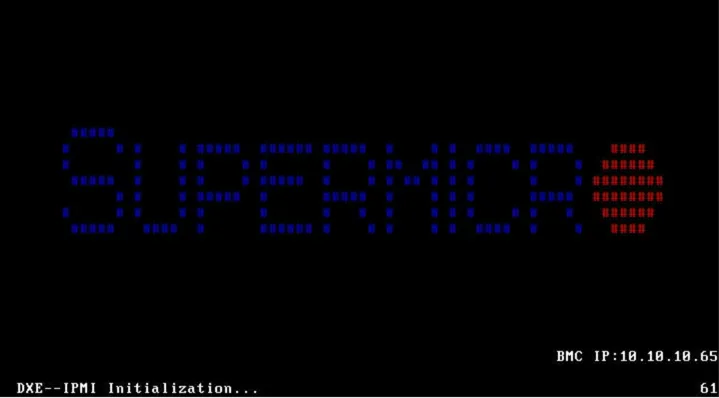
Then access the BMC via the browser at https://IP
Username: admin
Password: Your new password
BMC License
This series has a keygen for the BMC license available.
See this blog post for more info: https://peterkleissner.com/2018/05/27/reverse-engineering-supermicro-ipmi/
BMC Upgrade
The BMC Firmware can be upgraded from the BMC.
The latest version is 1.76 from November 2025.
The firmware is available to download from the supermicro website (account required).
BIOS Upgrade
The BIOS can NOT be upgraded from the BMC on this motherboard.
The latest version is 4.4 from June 2025.
The firmware is available to download from the supermicro website (account required).
The upgrade must be done in-band via FreeDOS.
FreeDOS ISO
We need to create a FreeDOS ISO that contains the BIOS update files.
brew install xorrisocurl -o FD13LIVE.iso https://ftp.upjs.sk/pub/mirrors/images/FD13LIVE.iso
mkdir -p ~/x11flash/FLASH
cp GreenlowWSRefreshFlashTool/afudosu.smc \
GreenlowWSRefreshFlashTool/choice.smc \
GreenlowWSRefreshFlashTool/fdt.smc \
GreenlowWSRefreshFlashTool/FLASH.BAT \
~/x11flash/FLASH/
cp BIOS_X11SAE-0895_20250616_4.4_STD.bin ~/x11flash/FLASH/X11SAE44.bin
xorriso -indev FD13LIVE.iso -outdev FD13-BIOS_X11SAE-0895_20250616.iso \
-boot_image any replay \
-map ~/x11flash/FLASH /FLASH -commit
xorriso -indev FD13-BIOS_X11SAE-0895_20250616.iso -find /FLASHMount ISO
Host the created ISO on an HTTP server that supports range requests and is accessible from the BMC.
Nginx in its default configuration will work. Python http.server will NOT work.
HTTPS (with a Lets Encrypt certificate at least) will not work.
The iso file must be in a folder. For example, 1/. The BMC will not query for the file if the file is on the root HTTP path.
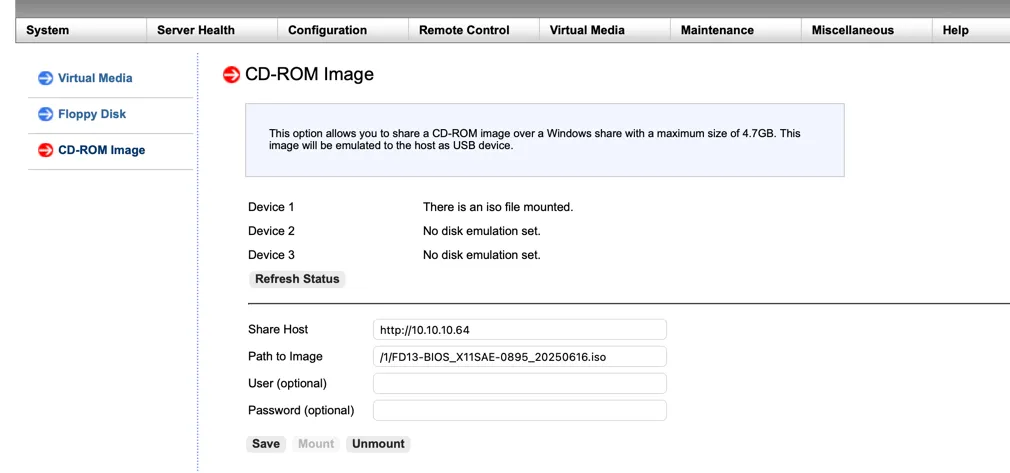
Log into BMC.
Attach a virtual CD with the following:
| Name | Value |
|---|---|
| Share Host | http://10.10.10.64 |
| Path to Image | /1/FD13-BIOS_X11SAE-0895_20250616.iso |
| User | |
| Password |
Click Save, then Mount.
Apply Update
Launch the KVM and power cycle.
Wait for FreeDOS to launch into Live Environment Mode.
Validate the D is the drive with the BIOS files.
dir D:\FLASHWrite the BIOS files into R
xcopy D:\FLASH\*.* R:\ /Y
dir R:\
Confirm that X11SAE44.BIN reads 16,777,216
Flash the bios.
R:
FLASH.BAT X11SAE44.BIN
If a reboot is required, you will see a timer.
Upon reboot, repeat the flash.
Wait for the flash (~5 minutes)
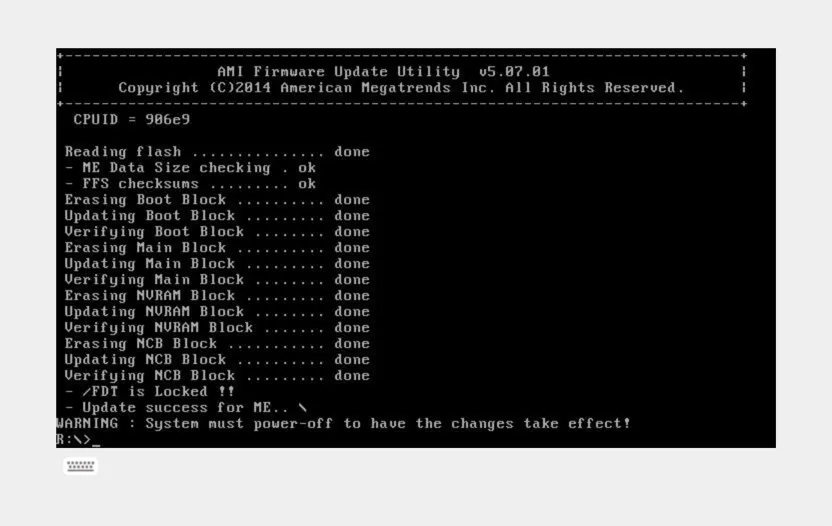
Then Power Off (NOT reboot)
Verify in BMC or in BIOS Setup that the version is 4.4.
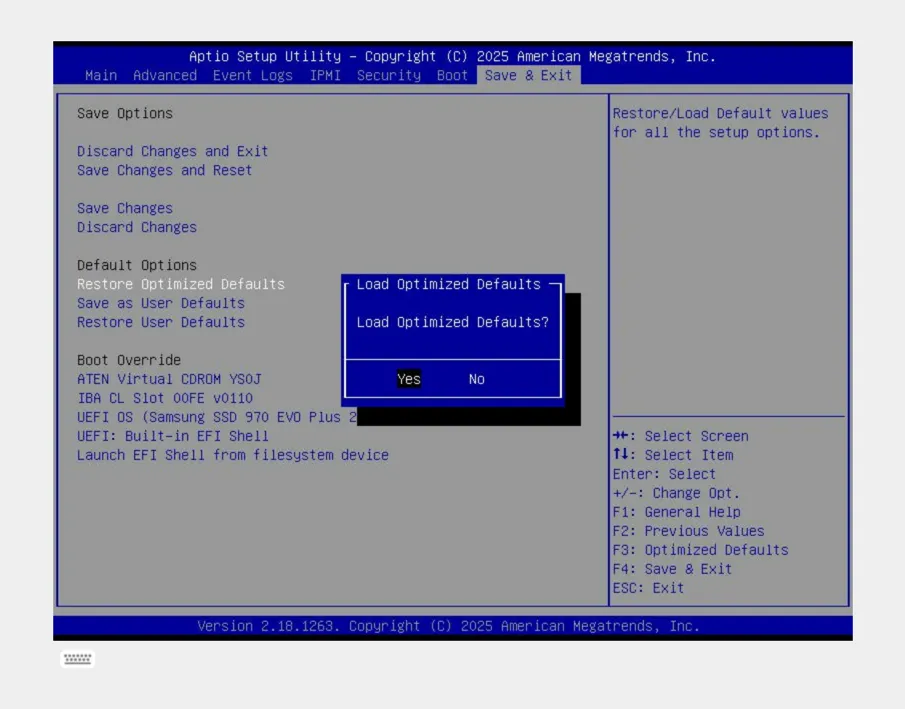
Then restart the BIOS defaults