I recently got my hands on a Palo Alto ION 9000. It can sometimes be found for a steal considering it comes with 64 GB of RAM. (64 gigs of RAM?? in THIS economy??)
Here is how you install Linux on it.
Hardware
- CPU: Intel Xeon D-2187NT
- RAM: 64 GB DDR4
- Storage: 256 GB SATA SSD
- Console: RJ-45 serial console port
- Network: 10x 1GbE RJ-45, 8x SFP+
- Power: Redundant 450W PSUs
- USB: 2 front ports

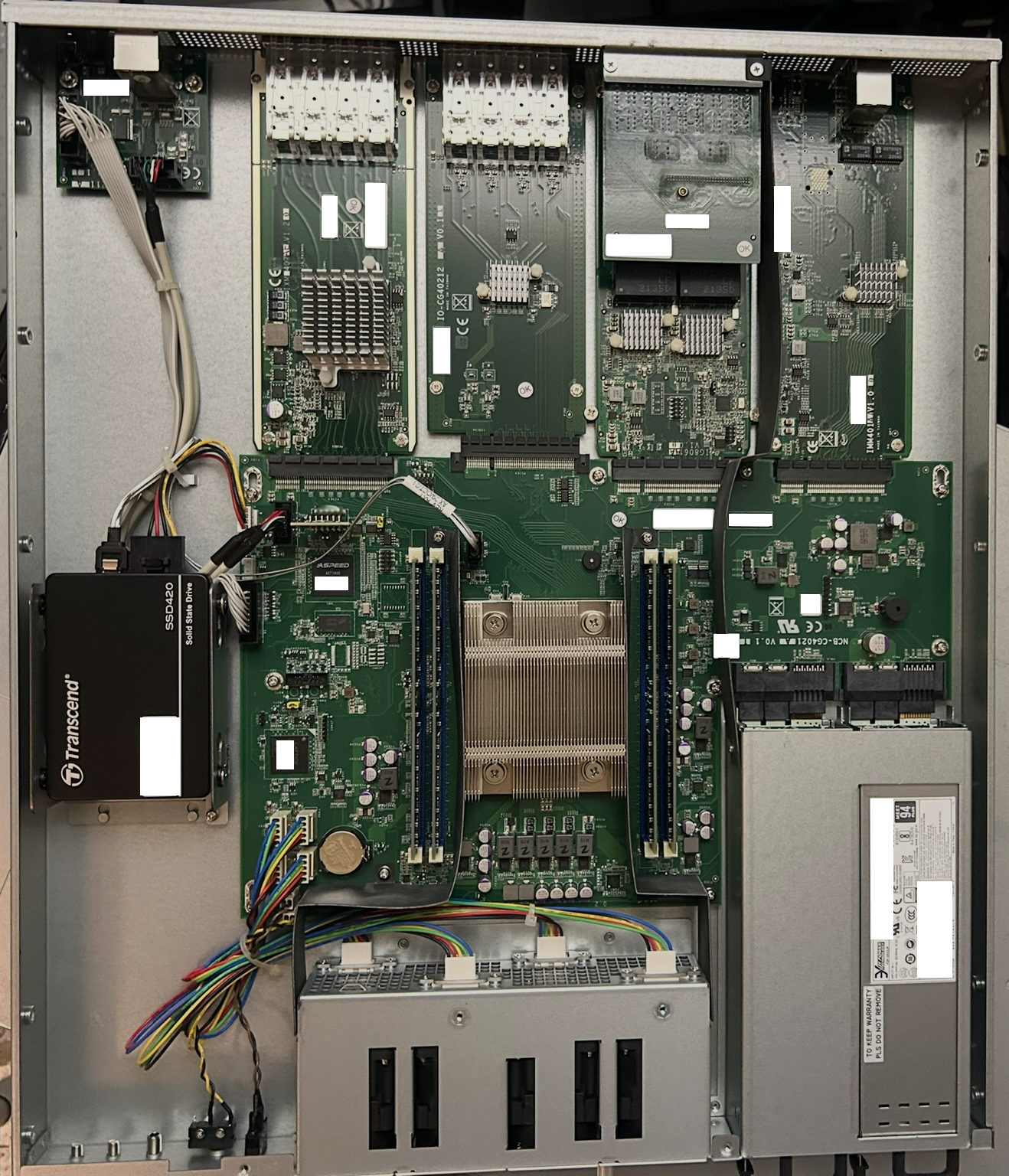
USB boot procedure
The appliance has a fixed boot order:
- SATA
- USB
The boot order cannot be altered because the BIOS is password protected. To boot from USB, the SATA drive must be missing or not bootable.
Open the device and either replace the drive with a new one, or remove the original, wipe it on another machine, and reinstall it.
Plug in your bootable USB drive and power on. The system will boot from USB.
You only get output over serial if the installer is configured to mirror its output to the serial console. Ubuntu’s installer does this out of the box; Debian’s does not.
Building a Debian ISO for serial installs
The stock Debian ISOs are not configured for installation over a serial console. Here is how to derive one that is.
Install the required package:
sudo apt update
sudo apt install xorriso
Extract the ISO:
xorriso -osirrox on -indev debian-13.5.0-amd64-DVD-1.iso -extract / iso-extract
chmod -R +w iso-extract
Configure GRUB to use the text console instead of switching to graphics:
sed -i 's/^  terminal_output gfxterm/  terminal_output console/' \
    iso-extract/boot/grub/grub.cfg
Force console output and auto-boot the text Install entry (index 1) after 30 seconds:
sed -i '1i set timeout=30\nset default=1\nterminal_input console\nterminal_output console' \
    iso-extract/boot/grub/grub.cfg
Add a serial console to every kernel line:
sed -i -E 's/ --- / console=tty0 console=ttyS0,115200n8 --- /' \
    iso-extract/isolinux/txt.cfg iso-extract/isolinux/gtk.cfg
Rebuild the ISO:
xorriso -indev debian-13.5.0-amd64-DVD-1.iso \
        -outdev debian-13.5.0-amd64-DVD-1-serial.iso \
        -boot_image any replay \
        -map iso-extract/boot/grub/grub.cfg /boot/grub/grub.cfg
Then dd the new ISO onto your USB drive like any other bootable image:
sudo dd if=debian-13.5.0-amd64-DVD-1-serial.iso of=/dev/sdX bs=4M oflag=sync status=progresswhere /dev/sdX is your USB drive.
Boot the appliance, connect over the AUX serial console at 115200 8N1, and the Debian installer will greet you over serial.